
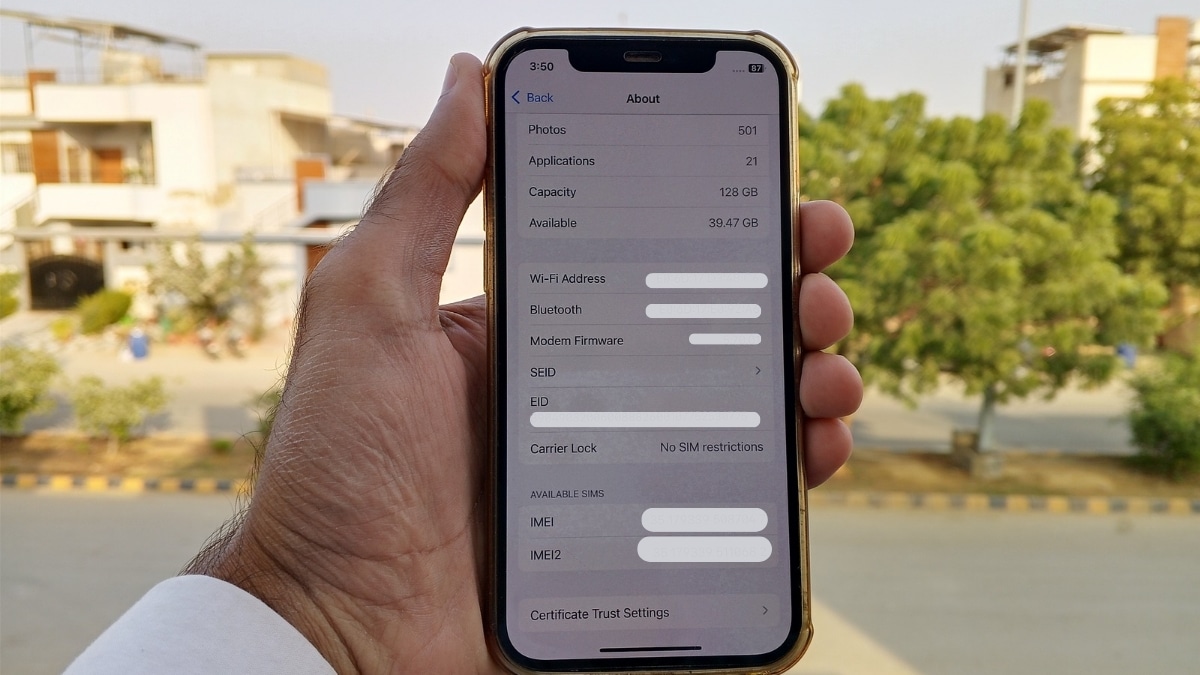
If you want to buy a used iPhone or switch carriers with your current phone, you need to know one important thing: How to check if an iPhone is unlocked.
A locked phone can only connect to one network provider, like AT&T or Verizon. This makes it very hard to switch carriers or travel.
Fortunately, it’s easy to find out if your phone is locked, especially now that iOS updates show the status right in your settings.
This guide gives you the four official and most reliable ways to get a quick and sure answer, even if you don’t have the original SIM.

Table of contents
Method 1: The Quickest Way (iOS Settings)
The most reliable and quickest way to check the status on modern iPhones (iOS 13 and later) is to go to the device settings and look there.
You don’t have to switch SIM cards, call the carrier, or use unreliable online checkers with this method.
Steps to Check on iOS 15 or Newer
Follow these simple steps on your iPhone to find the definitive Carrier Lock status:
1 Open Settings: Tap the Settings app icon on your Home Screen.

2 Go to General: Scroll down and tap on General.

3 Access About: Select About near the top of the General menu.

4 Locate ‘Carrier Lock’: Scroll down to the section labeled “Carrier Lock” (sometimes found under the ‘Network’ section).

What the Status Means
The message displayed next to the Carrier Lock field provides the final answer:
- ✅ Unlocked: If you see the message “No SIM Restrictions,” your iPhone is completely unlocked and can be used on any network provider around the world.
- ❌ Locked: If you see a message like “SIM Locked,” “AT&T Locked,” or the name of any other carrier, the device is tied to that specific network. You must contact that carrier to request an official unlock.
Method 2: Testing with a Different SIM Card
The iOS Settings check (Method 1) is quick and accurate, but the only way to be sure that your iPhone is unlocked is to do a real test by switching out the SIM card for one from a different service provider.
If you switch SIM cards, you can find out if the phone’s modem can only connect to the original carrier’s network or if it can connect to any network.
Steps to Safely Swap SIMs (The Practical Test)
To perform this test, you will need a SIM card from a network that is not your iPhone’s original carrier (e.g., if your phone was originally T-Mobile, use an AT&T or Vodafone SIM).
- Power Down: Power off your iPhone completely to avoid potential data issues during the swap.
- Eject the Original SIM: Use a SIM ejector tool (or a small paperclip) to open the SIM tray located on the side of your iPhone. Carefully remove the original SIM card.
- Insert the New SIM: Place the SIM card from the different carrier into the tray and reinsert it into the iPhone.
- Power On and Check: Power the iPhone back on.
- Verify Status: Once the phone boots up, look at the status bar at the top of the screen:
- ✅ Unlocked: If the name of the new carrier appears (e.g., “Vodafone” or “AT&T”) and you can place a test call, the iPhone is fully unlocked.
- ❌ Locked: If you see a “SIM Not Supported” or “SIM Card Invalid” error message, the iPhone is locked to its original carrier.
Boost Your iPhone Productivity
You can do anything you want with your iPhone once you know it’s officially unlocked.
Managing resource usage is very important for people who often work with mobile video or notice that apps are running slowly.
If you want to speed up your editing process or just want to watch videos in better quality, read our full guide on How to Speed Up a Video on iPhone.
This guide gives you steps you can take to make sure your device works at its best.
Method 3: Checking through IMEI Number
Your iPhone’s IMEI number is a 15-digit code that acts as a unique serial number for cellular devices. It can be used by carriers and official databases to confirm the lock status.
How to Find Your iPhone’s IMEI
There are three simple ways to retrieve your IMEI number:
1 Dial Pad: Open the Phone app and dial the simple code *#06#. The IMEI number will instantly appear on your screen.

2 Settings App: Go to Settings > General > About. The IMEI number is listed there.

3 Physical Location: The IMEI is often printed on the original box of your iPhone, or sometimes etched onto the SIM tray itself (for older models).
Warning: Why Free Online IMEI Checkers are Unreliable
While many free websites offer “IMEI Check” services, it is highly recommended to avoid them.
- These sites often use outdated or unofficial databases, leading to incorrect status reports.
- They may collect your IMEI number and personal data, creating privacy risks.
- For a guaranteed answer, only rely on the original carrier (Method 4) or an official Apple store that can check the GSMA database directly.
Method 4: Contacting Your Service Provider (The Official Confirmation)
Contacting the carrier that originally sold the iPhone is the most definitive way to confirm the lock status and, if needed, initiate an unlock request.
Steps to Contact Your Carrier
- Identify the Carrier: Use the IMEI number to confirm which carrier the phone is currently locked to (if known).
- Contact Support: Call their customer service or visit their official website’s “Unlock Policy” page.
- Provide Details: You will need to provide the IMEI number and basic account information (if you were the original purchaser).
- Confirm Status: The carrier will be able to check their internal database and provide a 100% accurate report on whether the phone is unlocked or eligible for unlocking.
Conclusion
Knowing how to check if iPhone is unlocked is vital before purchasing or traveling.
While the Settings > General > About screen offers the fastest and most reliable answer (looking for “No SIM Restrictions”), remember that the physical SIM swap test provides the only absolute, real-world confirmation.
By utilizing these four official methods—checking settings, swapping SIMs, verifying IMEI, and contacting the original carrier—you can ensure your device is truly free from carrier restrictions, giving you the freedom to choose your network provider anywhere in the world.
We trust this comprehensive guide provided you with the confidence and clarity needed to verify your iPhone’s lock status using official methods.
Whether you confirmed it through the Settings or via the SIM swap test, we’re here to support your device management needs.
Was this tutorial helpful in determining your phone’s status?
Please share your experience or any further questions you may have in the comments section below. We read every comment and value your input.
Frequently Asked Questions
Q1: Can I tell if my iPhone is unlocked?
Answer: Absolutely, yes. The easiest and most reliable method is checking your iPhone’s settings.
Go to Settings > General > About and look for the “Carrier Lock” field. If it says “No SIM Restrictions”, your iPhone is unlocked. Otherwise, it is SIM-locked to a specific carrier.
Q2: How do I know if my phone is locked or unlocked?
Answer: You can check its lock status using two primary methods:
- Settings Check: Looking for the “No SIM Restrictions” status in the About section (as mentioned above).
- SIM Swap Test: Inserting a non-matching SIM card (from a different carrier). If the phone catches a signal and allows calls, it is unlocked. If you see an error like “SIM Not Supported,” it is locked.
Q3: What does *#21# do to your iPhone?
Answer: The code \*#21# is a USSD code used to check Call Forwarding Status (diverting calls, SMS, or data).
This code has nothing to do with the iPhone’s locked or unlocked status.
It only shows if your carrier has set up any conditional or unconditional forwarding for your number. Do not rely on this code to determine the device’s network lock.
Q4: Can I check if my phone is unlocked with IMEI?
Answer: Yes, the IMEI (International Mobile Equipment Identity) is the most powerful tool for this.
An IMEI checker tool (often paid or provided by the original carrier) can contact a global database to give you the official activation and lock status of the phone.
This is highly recommended when buying a used phone, as it provides a written history of the device’s lock status.
Q5: Is there a free iPhone IMEI checker?
Answer: Yes, but with a warning. You can often find free IMEI checker websites online, which can sometimes provide the carrier name and general status (e.g., “Clean” or “Blacklisted”).
However, for the 100% official and current lock status, free tools are often delayed or inaccurate.
For the most reliable result, it’s safer to use the Settings Check (Q1) or contact the original carrier directly with the IMEI number.

Hello, my name is Zeeshan Salam. I've been an entrepreneur and an expert in on-page SEO for more than three years, and I've helped people find digital content more easily in search engines.
I want to help you navigate and succeed in the digital world by posting high-quality Tech News, in-depth How-To Guides, and helpful Problem-Solving content here.
The main thing I want to do is make hard technical topics easy to understand and useful for everyone.